Query document content
Find text in an open DOCX and keep mutation-ready targets.
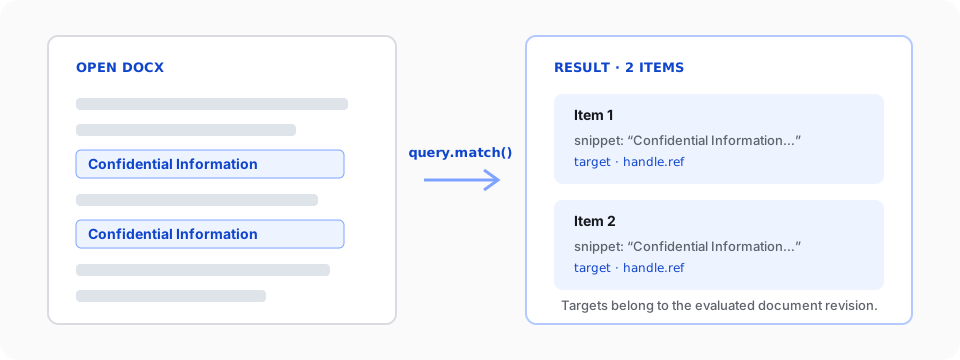
Use doc.query.match() when code needs to locate document content before reading or changing it. The query inspects the document model and returns explicit targets. It does not change the document.
This guide starts with a mounted v2 editor. Complete the Editor quickstart first if you do not yet have a working SuperDoc instance.
1. Query after the editor is ready
Get the browser Document API from superdoc.activeEditor.doc. Query inside onReady so the document is available:
import { SuperDoc } from 'superdoc';
import 'superdoc/style.css';

const superdoc = new SuperDoc({
  selector: '#editor',
  document: '/contract.docx',
  onReady: async ({ superdoc }) => {
    const doc = superdoc.activeEditor?.doc;
    if (!doc) throw new Error('The active document is unavailable.');

    const result = await doc.query.match({
      select: {
        type: 'text',
        pattern: 'Confidential Information',
      },
      require: 'all',
    });

    console.log(`Found ${result.total} matches.`);

    for (const item of result.items) {
      if (item.matchKind !== 'text') continue;
      console.log(item.snippet, item.target, item.handle.ref);
    }
  },
});

window.addEventListener('beforeunload', () => {
  superdoc.destroy();
});
This source is typechecked against the public v2 browser API. The default text selector performs a case-insensitive literal match. Use mode: 'regex' only when a literal pattern cannot express the search.
2. Read the result
The result separates human-readable context from mutation-ready locations:
| Field | What it tells you |
|---|---|
total | Number of matches before pagination |
items | Matches returned on this page |
evaluatedRevision | Document revision used to evaluate the query |
item.snippet | Matched text with nearby context |
item.highlightRange | Location of the match inside the snippet |
item.target | Direct target for one operation such as replace() or delete() |
item.handle.ref | Reference for a mutation plan tied to evaluatedRevision |
Use item.matchKind before reading text-only fields. Node queries return a different item shape.
3. Choose the expected number of matches
Set require according to what makes the operation safe:
| Value | Behavior |
|---|---|
'first' | Return only the first match |
'last' | Return the final scoped match; fail when none exist |
'exactlyOne' | Require one match and fail when the count differs |
'all' | Return all matches and fail when none exist |
'any' | Return all matches, including an empty result |
Prefer 'exactlyOne' when a later mutation must affect one unique clause. Prefer 'all' when the task intentionally handles every occurrence.
Select the last match
require: 'last' selects the final match after the selector, story, within, and deleted-text options have filtered the candidates. It uses the same order as require: 'all': story enumeration order first, then document order within each story. An unscoped text query searches the body followed by supported textboxes in the main document, so the last match may be inside a textbox. Pass in: { kind: 'story', storyType: 'body' } to search only body text.
Do not pass limit or offset with last; either field causes INVALID_INPUT. The result contains one item with an id of m:<total - 1>, and page reports { limit: 1, offset: total - 1, returned: 1 }. Here page.offset is the match's position in the full filtered set, even though the caller supplied no offset. Zero matches cause MATCH_NOT_FOUND.
doc.find uses a separate result format and searches body text by default. Its callers can use query.match({ select, in: { kind: 'story', storyType: 'body' }, require: 'last' }) to get the final body match and a revision-bound target.
4. Keep targets revision-safe
A target or reference belongs to the document revision that produced it. If another operation changes the document first, run the query again before using an earlier target.
For one direct operation, keep item.target. For a mutation plan, keep item.handle.ref together with result.evaluatedRevision so the plan can reject stale input instead of editing the wrong content.
Pending tracked deletions are excluded from text queries by default. Set includeDeletedText: true only when the workflow explicitly needs to inspect deleted text.
Next, replace and delete content with fresh query targets, or review the Document API mental model for the full operation lifecycle. The generated query.match reference lists every selector and failure mode.